

-
 Hey Guest!
British Car Forum has been supporting enthusiasts for over 25 years by providing a great place to share our love for British cars. You can support our efforts by upgrading your membership for less than the dues of most car clubs. There are some perks with a member upgrade!**Upgrade Now**
(PS: Upgraded members don't see this banner, nor will you see the Google ads that appear on the site.)
-
 When posting a classified ad, you MUST select a prefix from the drop-down next to the subject line. If you don't you will get an error and your ad will not be posted!

Tips
- We have a special forum called "Member Articles" where you can submit actual articles for consideration for publication. Learn More
- Don't have an Avatar? If not, your avatar will default to the 1st character in your username. Go into "Account Details" to change your Avatar.
- Some basic forum navigation info: click
 Hey - did you know if you click on the title of a thread it will take you to the first unread post since you last visited that thread?
- Hey Guest - Is your British Car Club in our Clubs database? If not, send me a PM - Basil

- Looking for a local club? Click the "Clubs" tab above and browse hundreds of clubs world-wide.
- Add Android or iPhone APP: click
- Did you know - any picture or video you add in your posts in any marque-specific forum will also get added to the Media Gallery automatically.
- A few more tips about posting and replying: click
- Hey there Guest - be sure to keep your profile page up to date with interesting info about yourself: learn more
- More tips and tricks on Posting and Replying: click
 but were afraid to ask:
  STOP!! Never post your email address in open forums. Bots can "harvest" your email! If you must share your email use a Private Message or use the
  smilie in place of the real @
- Want to mention another member in a post & get their attention? WATCH THIS

- So, you created a "Group" here at BCF and would like to invite other members to join? Watch this!
- Hey Guest - A post a day keeps Basil from visiting you in the small hours and putting a bat up your nightdress!
- Hey Guest - do you know of an upcoming British car event?
 Pretty Please - add it to our Events forum(s) and add to the calendar! >> Here's How <<
- Hey Guest - you be stylin' Change the look and feel of the forum to fit your taste. Check it out
- If you run across an inappropriate post, for example a post that breaks our rules or looks like it might be spam, you can report the post to the moderators: Learn More
- If you would like to try some different "looks" or styles for the site, scroll to the very bottom, on the left and click the Style Selector.
You are using an out of date browser. It may not display this or other websites correctly.
You should upgrade or use an alternative browser.
You should upgrade or use an alternative browser.
Posting Images
- Thread starter KVH
- Start date


luke44
Jedi Warrior

Offline
Take a look at this posting. it should help.
https://www.britishcarforum.com/bcforum/ubbthreads.php/topics/689735/Re_posting_photos#Post689735
https://www.britishcarforum.com/bcforum/ubbthreads.php/topics/689735/Re_posting_photos#Post689735


TR3driver
Great Pumpkin - R.I.P
Offline
One of the things I like about using Photobucket is that it will automagically resize if necessary. You just upload whatever you want to your PB album and it downsizes if necessary during the loading process. Then insert a link or IMG code over here, and Robert is your close relative. The IMG codes are really easy to get too, all you do is let your mouse hover over the thumbnail of the photo you want to post, then click in the popup labeled IMG:

Then switch back to your BCF post and hit CTL-V. While composing your post, you'll only see the IMG code, like:
<div class="ubbcode-block"><div class="ubbcode-header">Code:</div><div class="ubbcode-body ubbcode-pre" ><pre>
 </pre>[/QUOTE]
but after you hit 'Submit', it will show the photo
Then switch back to your BCF post and hit CTL-V. While composing your post, you'll only see the IMG code, like:
<div class="ubbcode-block"><div class="ubbcode-header">Code:</div><div class="ubbcode-body ubbcode-pre" ><pre>
but after you hit 'Submit', it will show the photo
OP


Offline
I guess my problem is that in SnapFish my pics were 1.5 MB in size, way too big.
There must be an easier way, but I used Photoshop to make them "Web Size" whatever that means.
The link was a URL, and I didn't even get a message. All I got was a posted message with the http// url.
I'll try again during daylight hours)
There must be an easier way, but I used Photoshop to make them "Web Size" whatever that means.
The link was a URL, and I didn't even get a message. All I got was a posted message with the http// url.
I'll try again during daylight hours
)
TR3driver
Great Pumpkin - R.I.P
Offline
If you are linking to a photo hosted on SnapFish, then I doubt that size is the issue. But to get them to show as photos on BCF, you will need to either surround the link with the IMG code:
<div class="ubbcode-block"><div class="ubbcode-header">Code:</div><div class="ubbcode-body ubbcode-pre" ><pre>

</pre>[/QUOTE]
or switch to the "Full reply" screen and use the image icon

<div class="ubbcode-block"><div class="ubbcode-header">Code:</div><div class="ubbcode-body ubbcode-pre" ><pre>
</pre>[/QUOTE]
or switch to the "Full reply" screen and use the image icon
TR3driver
Great Pumpkin - R.I.P
Offline
Sorry, my mistake.DNK said:Randall I was asking KVH that question.

TR3driver
Great Pumpkin - R.I.P
Offline
Unfortunately there is no direct translation, because of image compression. Without compression, 100kb is very small, less than 320 by 240 pixels.toysrrus said:What does "100KB" equate to in "Pixels"?
With a modest amount of compression, 640 x 480 (0.3 megapixels) will usually fit in 100kb. Turn the compression up a bit higher, and generally 800 x 600 (0.5) will fit.

TR3driver
Great Pumpkin - R.I.P
Offline
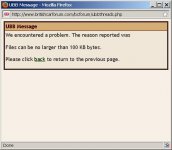
Also don't forget that the 100kb limit applies only to images uploaded directly to BCF (through the BCF "File Manager" dialog).
As long as you upload your photos to another site (eg SnapFish, PhotoBucket, Flickr, Picasa, etc) and use a link on BCF, your photos can be as large as the other site will allow. Using links will also allow you to put multiple images in a single BCF post (without being a paid member).
As long as you upload your photos to another site (eg SnapFish, PhotoBucket, Flickr, Picasa, etc) and use a link on BCF, your photos can be as large as the other site will allow. Using links will also allow you to put multiple images in a single BCF post (without being a paid member).
M
Member 10617
Guest
Guest
Offline
Here's another, and more simple, way to attach photos to your postings.
If you have a photo saved to your computer, print it out at about 3 x 5. Then scan it as a jpeg photo at 100 or 75 dpi. Your scanner should give you some "jpeg options" as to how large a file you want to save, and you should select the low end. Then scan the photo.
Save this new scanned version of your original photo in a file marked, for example, BCF Photos.
When you compose a message on the Forum, click on File Manager at the bottom of the box in which you are composing your message and follow the instruction for attaching a photo. Then submit your message.
You can only attach one photo per posting, but that may be enough.
The scanning process is a simple way to reduce the file to the size acceptable for attaching to a BCF message.
If you have a photo saved to your computer, print it out at about 3 x 5. Then scan it as a jpeg photo at 100 or 75 dpi. Your scanner should give you some "jpeg options" as to how large a file you want to save, and you should select the low end. Then scan the photo.
Save this new scanned version of your original photo in a file marked, for example, BCF Photos.
When you compose a message on the Forum, click on File Manager at the bottom of the box in which you are composing your message and follow the instruction for attaching a photo. Then submit your message.
You can only attach one photo per posting, but that may be enough.
The scanning process is a simple way to reduce the file to the size acceptable for attaching to a BCF message.

GBRandy
Jedi Knight
Offline
Pixels & file sizes.
Most screens have a 72 Dots Per Inch (DPI).
A printed image needs at least 150 and ideally 200 or more DPI to look good.
As you can tell, the bigger the print, the more dots and the bigger the file.
As an example the images off my Canon MKIV are 10 meg or larger. When I am done resizing for the web, they are 175k or less.
In Photoshop, you can open the file and go to Image/Image Size and type in the DPI (72)and physical size (900 x 700 pixels)you want. THEN click save for web and create a new .jpg file. You will want two files. The original in printable size and the newly created small shareable size.
Snapfish, Smugmug, Photobucket, etc kinda of do this for you. You upload a big file and it re sizes it for you based on where you go with it (printer, webshare, etc).
This issue here is uploading takes forever because of the files sizes...and if you are a photo nut like myself, the compression software does an awful job in rendering image quality.
Adobe Lightroom, Aperature (Mac), or other basic photo editing / sharing software is really what you want to have. This software creates outputs using the original file so you always have that for printing. You simply select what files you want out of it...web sharing, e-mails, etc. and it processes them for you....and in most cases can upload them as well.
It looks way more complicated than it really is.
Most screens have a 72 Dots Per Inch (DPI).
A printed image needs at least 150 and ideally 200 or more DPI to look good.
As you can tell, the bigger the print, the more dots and the bigger the file.
As an example the images off my Canon MKIV are 10 meg or larger. When I am done resizing for the web, they are 175k or less.
In Photoshop, you can open the file and go to Image/Image Size and type in the DPI (72)and physical size (900 x 700 pixels)you want. THEN click save for web and create a new .jpg file. You will want two files. The original in printable size and the newly created small shareable size.
Snapfish, Smugmug, Photobucket, etc kinda of do this for you. You upload a big file and it re sizes it for you based on where you go with it (printer, webshare, etc).
This issue here is uploading takes forever because of the files sizes...and if you are a photo nut like myself, the compression software does an awful job in rendering image quality.
Adobe Lightroom, Aperature (Mac), or other basic photo editing / sharing software is really what you want to have. This software creates outputs using the original file so you always have that for printing. You simply select what files you want out of it...web sharing, e-mails, etc. and it processes them for you....and in most cases can upload them as well.
It looks way more complicated than it really is.
TR3driver
Great Pumpkin - R.I.P
Offline
Frequently this is user-selectable. Mine is set to roughly 90 dpi.GBRandy said:Most screens have a 72 Dots Per Inch (DPI).
<div class="ubbcode-block"><div class="ubbcode-header">Quote:]In Photoshop, you can open the file and go to Image/Image Size and type in the DPI (72)and physical size (900 x 700 pixels)you want. THEN click save for web and create a new .jpg file. You will want two files. The original in printable size and the newly created small shareable size. [/QUOTE]
If you don't have Photoshop, there is a free tool that can do the same thing:
https://www.irfanview.com/
<div class="ubbcode-block"><div class="ubbcode-header">Quote:]Snapfish, Smugmug, Photobucket, etc kinda of do this for you. You upload a big file and it re sizes it for you based on where you go with it (printer, webshare, etc). [/QUOTE]
PhotoBucket at least will resize the file as it is uploaded (if it is larger than their maximum). Then for sharing on the web, you can select either the uploaded size, or a reduced size.
<div class="ubbcode-block"><div class="ubbcode-header">Quote:]
This issue here is uploading takes forever because of the files sizes...
[/QUOTE]
Photobucket also offers a Java-driven bulk uploader that does the resizing on your computer. It is very quick (if you have a reasonably fast connection & computer), and since you choose all the files ahead of time, you can simply start it working and walk away. I didn't try to time it closely, but it only took a few minutes to upload the entire album of my sister's wedding, which was over a gigabyte on my hard drive.
<div class="ubbcode-block"><div class="ubbcode-header">Quote:]
and if you are a photo nut like myself, the compression software does an awful job in rendering image quality.
[/QUOTE]
I'm not a photo nut at all, but IMO no one is ever going to notice the lack of quality when viewing images on BCF/the web. As you pointed out, if you want to do anything else with the photo (like printing), you should keep the (large) original on your hard drive.
GBRandy
Jedi Knight
Offline
^^^^^^^^^
Good responses. I do see file reduction flaws..the loss in detail is really obvious in eyes, and facial details. Drives me nuts, but I am as anal as they come
As a result I like to control that file size reduction internally and specifically.
I have seen default web re-sizing set at 72, 76 & 90 DPI so that 90 isn't surprising.
I have no experience with any of the Photobucket, Smugmug, etc accounts. So I am not bashing or endorsing any opf them....I host my own and have a separate site that handles my print sales and fulfillment.
Hope it helped explain the details just the same.
Thanks,
Good responses. I do see file reduction flaws..the loss in detail is really obvious in eyes, and facial details. Drives me nuts, but I am as anal as they come
As a result I like to control that file size reduction internally and specifically.
I have seen default web re-sizing set at 72, 76 & 90 DPI so that 90 isn't surprising.
I have no experience with any of the Photobucket, Smugmug, etc accounts. So I am not bashing or endorsing any opf them....I host my own and have a separate site that handles my print sales and fulfillment.
Hope it helped explain the details just the same.
Thanks,
TR3driver
Great Pumpkin - R.I.P
Offline
Certainly helpful, didn't mean to sound overly critical.GBRandy said:Hope it helped explain the details just the same.
myspitfire
Jedi Warrior
Offline
Useing acronym's here is also a confusing way to communicate let alone trying to use the BEST way to show photos.
For some of us its NOT that easy...Make it simplier.
That would be a boon to us here who would love to show our accomplishments with our Triumphs
Ken
For some of us its NOT that easy...Make it simplier.
That would be a boon to us here who would love to show our accomplishments with our Triumphs
Ken